Web Archive Manager (WAM)
The Web Archive Manager (WAM) is part of the toolkit to aid researchers in working with web archives. Our aim is to enable usage of archives as a research data source.
Below are what you can do in WAM:
WAM is developed by QUT Digital Observatory, as part of the Australian Internet Observatory (AIO). AIO received co-investment (doi.org/10.3565/hjrp-b141) from the Australian Research Data Commons (ARDC) through the HASS and Indigenous Research Data Commons. The ARDC is enabled by the National Collaborative Research Infrastructure Strategy (NCRIS).
Please share your feedback via this feedback form or by emailing us at digitalobservatory@qut.edu.au.



Installation
WAM is currently available in Windows only. Click on the link below to download the installer.
You can install WAM on Windows via the installer, or by running the executable.
WAM (Web Archive Manager)-0.1.0
Troubleshooting
WAM is a perfectly safe piece of software and poses no security risks to any device. However, you might get warnings over the download and installation of the program. Below are some possible cases and how you can resolve them.
1. Download warning in Microsoft Edge
It is recommended that you download the installer with a Chrome-based browser. However, if you download the file in Microsoft Edge, you might get a warning message over the download (see screenshots below). Click on the 3-dot icon and select Keep, then select Keep anyway. That should allow you to download and access the file.
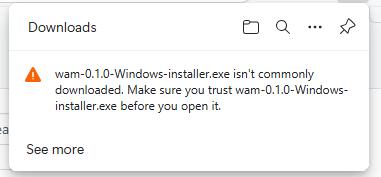
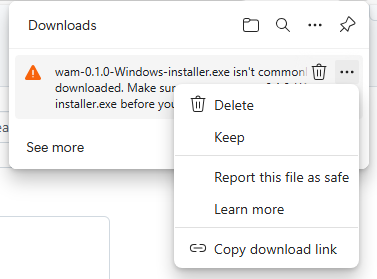
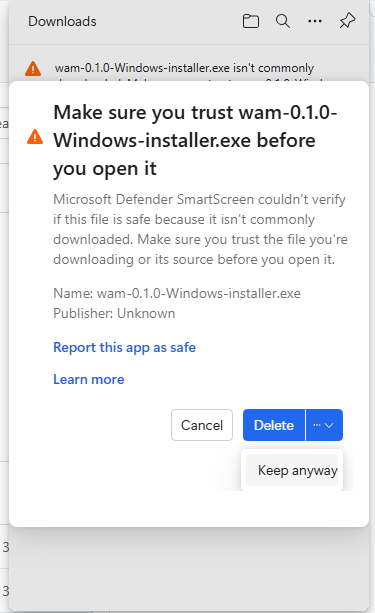
2. Installation warning when running the Windows installer
When running the Windows installer, you might get a warning about the app being “unrecognizeable” (see screenshot below). You can bypass the warning by clicking More info and then click Run anyway.
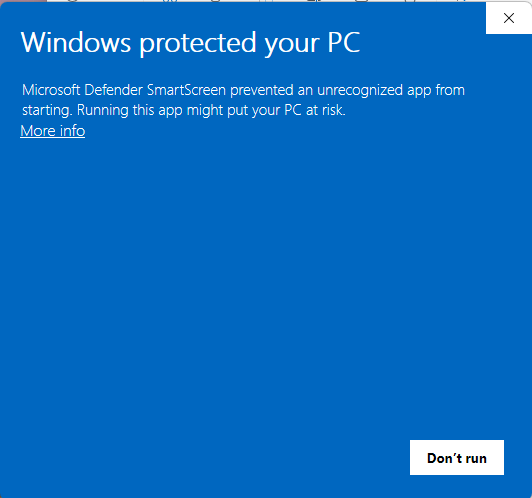
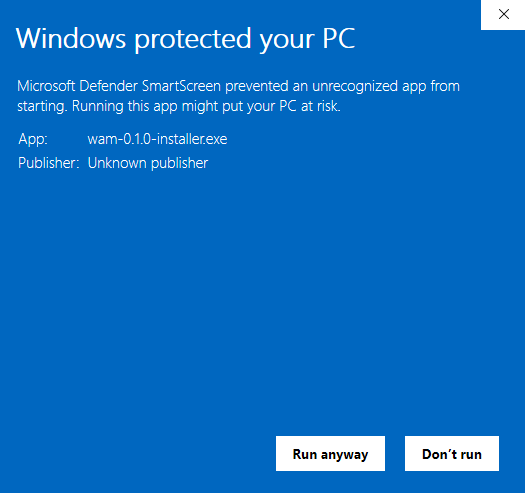
WAM (Web Archive Manager)-0.1.0
If you are installing WAM for the first time, you might have to allow WAM to be run on your Mac.
Install WAM from the disk image file by dragging the app to the Applications directory
Open Terminal (you can find this in the Finder under Applications > Utilities)
In your Terminal, run the following line:
xattr -d com.apple.quarantine /Applications/wam.appRestart WAM
Features
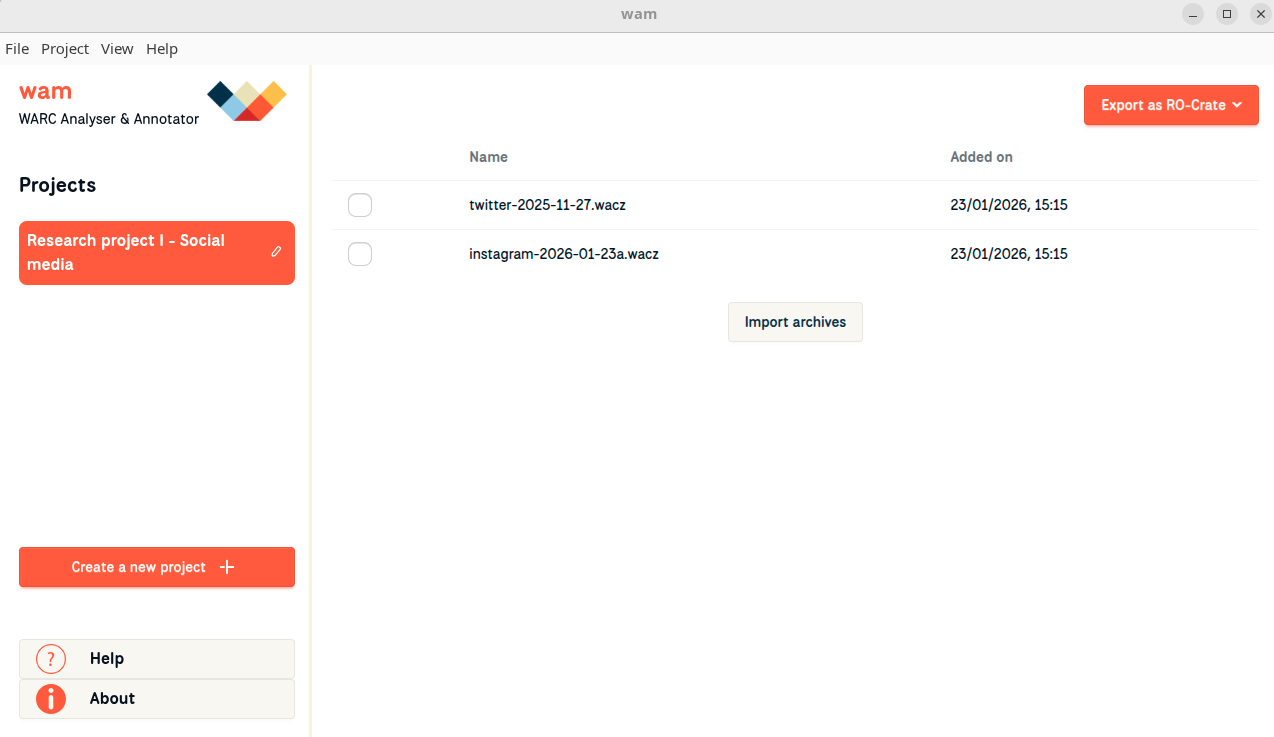
Organise and manage web archives
A WAM project allows you to store related archives in one dedicated space. The project can be exported as a research artifact, e.g. RO Crate, to be shared with other researchers. You can also add your own custom metadata to archive files.
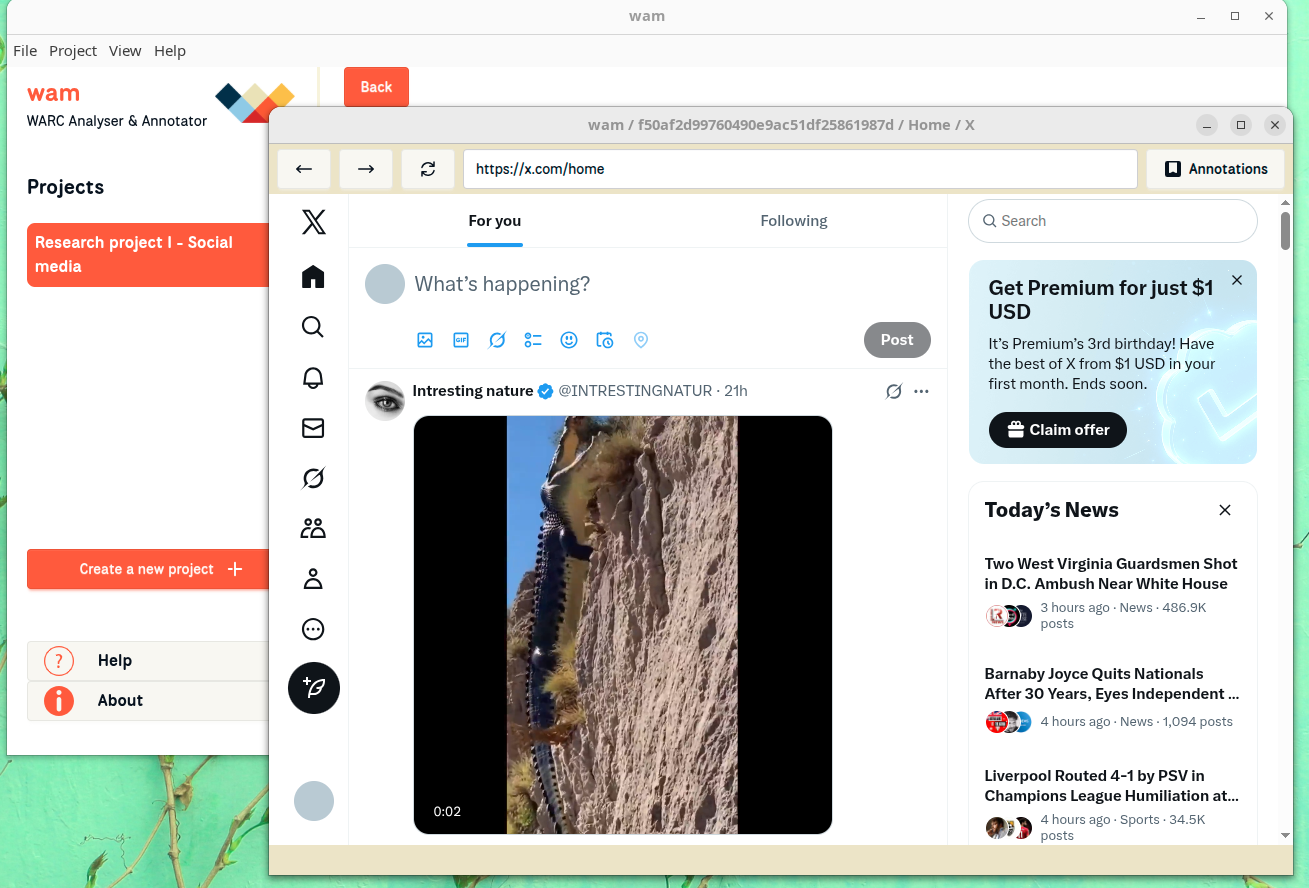
Replay web archives
In WAM, you can replay the pages you’ve archived.
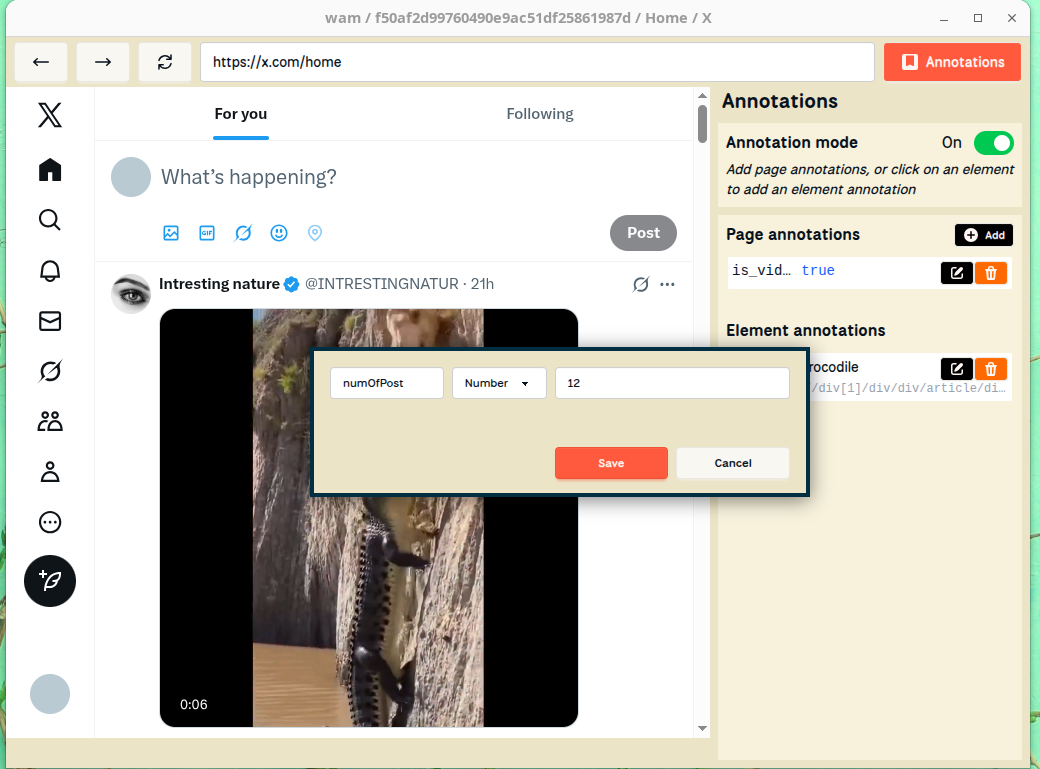
Annotate archived web content
When replaying an archived page, you can annotate the entire page or specific sections within the page by adding custom annotations. In other words, annotation enables qualitative coding of archived web content.
Getting started
Naming conventions for metadata titles
Metadata titles are case sensitive, meaning metadataTitle and metadatatitle will be taken as two different words.
No spaces or special characters are allowed. The only special character you can use is @.
Standard metadata such as file, timestamp, size, and tags are reserved, so if you try to add a metadata title using these words, they will be ignored.
Examples of acceptable metadata titles: authorName, authorname, @authorName.
Feedback
WAM is still in its early stage of development and prototyping. Therefore, we value all kinds of user feedback which will help inform future improvements to the software. Please leave your comments via https://bit.ly/wam-feedback.